📱 Phone Number Configuration
In v0.2.x, WhatsApp phone numbers are configured entirely through the UI — no environment variables required. Each workspace can have multiple phone numbers, each with its own credentials.
Accessing Phone Configs
Navigate to Phone Configs from the sidebar (phone icon) or go directly to /phone-configs.
To add a new phone number, click New Phone Config or navigate to /phone-configs/new.
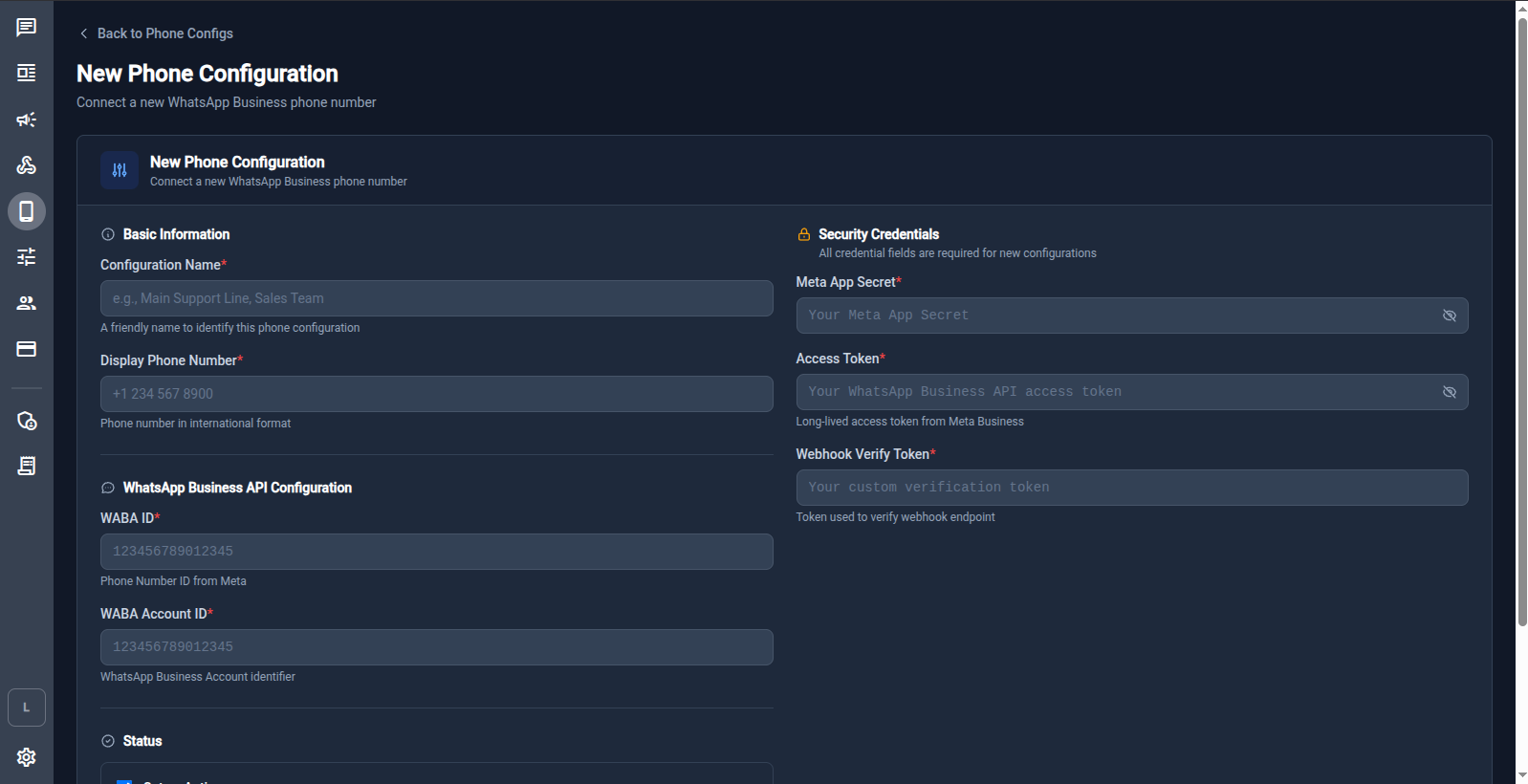
Fields
Basic Information
| Field | Description |
|---|---|
| Configuration Name | A friendly name to identify this phone config (e.g. "Main Support Line", "Sales Team") |
| Display Phone Number | The phone number in international format (e.g. +1 234 567 8900) |
WhatsApp Business API Configuration
| Field | Description |
|---|---|
| WABA ID | Phone Number ID from Meta (not the WABA account ID). See Getting Meta Credentials. |
| WABA Account ID | WhatsApp Business Account identifier. See Getting Meta Credentials. |
Security Credentials
| Field | Description |
|---|---|
| Meta App Secret | App Secret from your Meta app settings. Used to verify webhook signature headers. |
| Access Token | Long‑lived access token from Meta Business (system user token). See Getting Meta Credentials. |
| Webhook Verify Token | An arbitrary string you choose. Must match what you enter in Meta's webhook configuration. |
Status
Toggle the phone config Active or Inactive. Only active configs receive and send messages.
Step‑by‑step Setup
- Collect your Meta credentials before starting.
- Navigate to
/phone-configs/new. - Fill in all required fields (marked with
*). - Set Status to Active.
- Save the configuration.
- Register the webhook in Meta:
- Callback URL:
https://api.example.com/webhook-in - Verify Token: the Webhook Verify Token you just entered
- See Webhook Setup for full instructions.
- Callback URL:
Multiple Phone Numbers
You can add as many phone configs as needed per workspace. Each config has independent credentials and an independent active/inactive status.
Conversations in the chat UI are associated with the phone number they were received on, making it easy to route messages by number.
Phone Registration Flow (Advanced)
If your phone number is not yet registered with WhatsApp Cloud API, you can complete the registration flow through the API:
- Request a verification code –
POST /workspace/{id}/phone-config/{id}/request-code - Verify the code –
POST /workspace/{id}/phone-config/{id}/verify-code - Register with a PIN –
POST /workspace/{id}/phone-config/{id}/register - Activate – set
is_active: truevia the UI
All registration endpoints require the phone_config.manage policy on the workspace. See Workspaces & Permissions for policy details.
Troubleshooting
Webhook verify token fails
Ensure the Webhook Verify Token in the UI exactly matches what you entered in Meta's App Dashboard — no extra whitespace or special characters.
Messages not arriving
- Confirm the phone config is set to Active.
- Check that the Meta webhook is pointing to
https://api.example.com/webhook-in. - Verify the Access Token is a long‑lived system user token, not a temporary sandbox token.
- Inspect server logs:
docker compose logs -f server.