🤖 Node‑RED Integration
Supporter‑only feature – unlock via the support plans to receive the
wacraft‑noderedimage and source code.
Automate WhatsApp conversations with visual flows: trigger on inbound messages, call external APIs, and send interactive replies – all without writing Go or JavaScript.
1 — How it works
┌────────────┐    Webhook  ┌──────────────┐  REST/WS   ┌─────────────┐
│  WhatsApp  │────────────>│wacraft‑server│───────────>│  Node‑RED   │
│  Cloud API │             │     (Go)     │            │  Flows      │
└────────────┘             └──────────────┘<───────────┤             │
        ▲                       ▲   ▲   ▲    HTTP      │   Any DB/   │
        │                       │   │   └──────────────┤   Service   │
        │                       │   └───────── Trigger │             │
        │                       └────────── Send Msg   └─────────────┘
The Node‑RED container authenticates with your running wacraft‑server using
SU_PASSWORD over HTTPS. Custom nodes (wait‑text‑message‑match,
respond‑with‑text, etc.) wrap the wacraft REST endpoints, turning low‑level
JSON calls into drag‑and‑drop blocks.
2 — Deploy
2.1 Standalone Docker
docker run -d --name wacraft-nodered \
  -e SU_PASSWORD=<SU_PASSWORD> \
  -e SERVER_HOST=https://api.example.com \
  -p 1880:1880 \
  --restart unless-stopped \
  astervia/wacraft-nodered:v0.1.0
| Env var | Description |
|---|---|
SU_PASSWORD |
Same super‑user pass you set in your wacraft server. |
SERVER_HOST |
Public URL of the server (protocol included). |
2.2 Compose stack
- Edit
docker-compose.yml(supporters repo) and uncomment thenoderedservice block. - Add the two env vars above to your main
.env. - Recreate:
docker compose up -d --build nodered
Node‑RED UI → https://nodered.example.com (or :1880 if local).
3 — First flow: receive message
- Log in to the wacraft UI → Automations.
- Click ➕ → Import and paste the JSON below.
- Deploy.
[
    {
        "id": "0ff445d6d247a50e",
        "type": "tab",
        "label": "Receive WhatsApp message",
        "disabled": false,
        "info": ""
    },
    {
        "id": "77466c5e3382df81",
        "type": "http in",
        "z": "0ff445d6d247a50e",
        "name": "Receive endpoint",
        "url": "/webhook-in/whatsapp/message/receive",
        "method": "post",
        "upload": false,
        "swaggerDoc": ""
    },
    {
        "id": "046026af5a9c6dd4",
        "type": "http response",
        "z": "0ff445d6d247a50e",
        "name": "Success",
        "statusCode": "200"
    },
    {
        "id": "c122c47566ca712b",
        "type": "link out",
        "z": "0ff445d6d247a50e",
        "name": "receive",
        "mode": "link",
        "links": ["aac9a9ba20bedf67"]
    },
    {
        "id": "95014bee9298fe9d",
        "type": "link in",
        "z": "0ff445d6d247a50e",
        "name": "response",
        "links": ["45be4f514ab7f204"]
    }
]
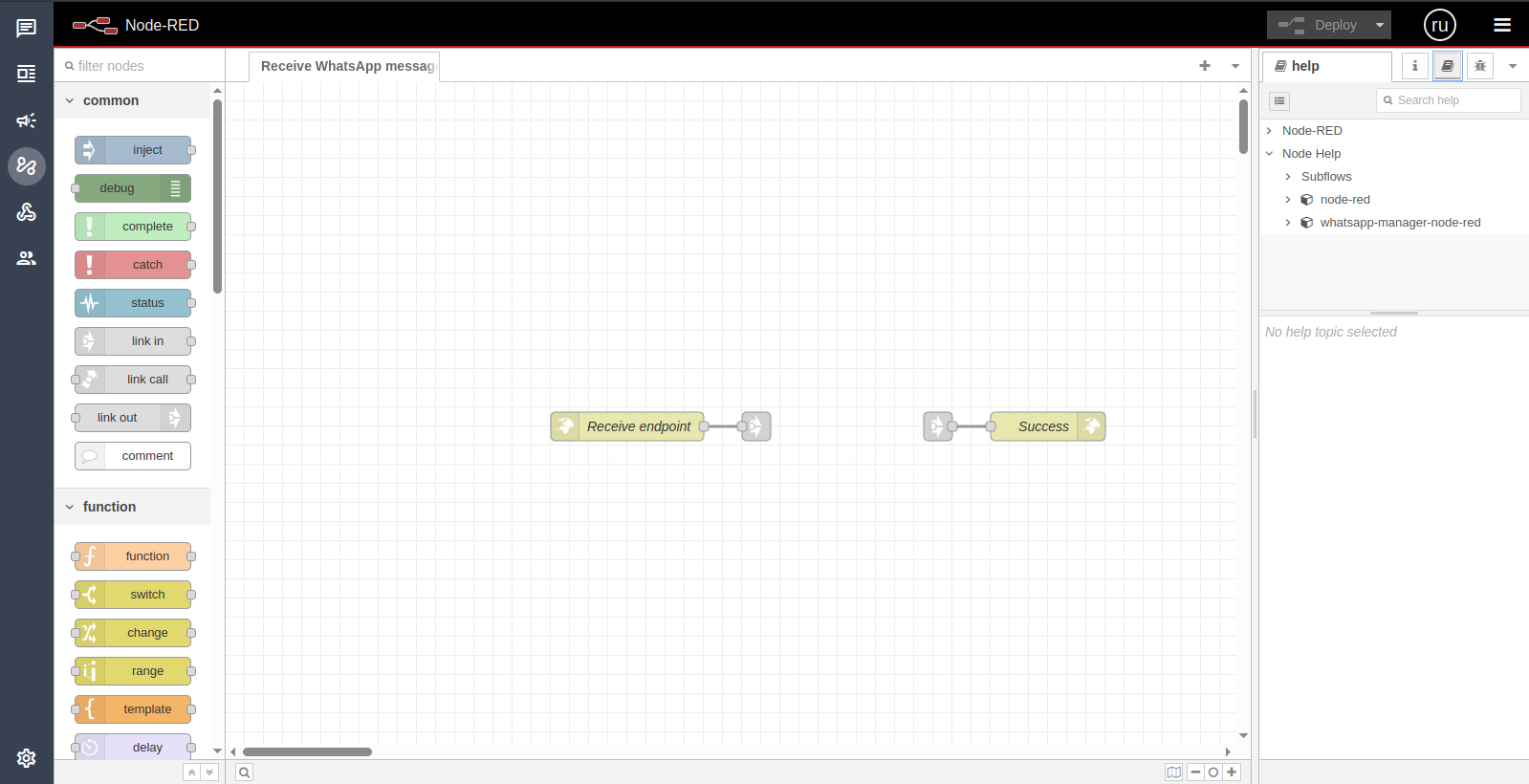
Register the webhook in wacraft → Webhooks pointing to:
https://nodered.example.com/webhook-in/whatsapp/message/receive.
4 — Ping → Pong example
Import the second flow to auto‑reply "pong" whenever a user sends "ping".
[
    {
        "id": "4cf16c53f88e1ecc",
        "type": "tab",
        "label": "Send pong on ping"
    },
    {
        "id": "aac9a9ba20bedf67",
        "type": "link in",
        "z": "4cf16c53f88e1ecc",
        "links": ["c122c47566ca712b"]
    },
    {
        "id": "78c14e9ddab5c294",
        "type": "wait-text-message-match",
        "z": "4cf16c53f88e1ecc",
        "name": "Check ping",
        "desiredText": "ping"
    },
    {
        "id": "7f1b6653728520e7",
        "type": "respond-with-text",
        "z": "4cf16c53f88e1ecc",
        "name": "Answer with pong",
        "text": "pong"
    },
    {
        "id": "45be4f514ab7f204",
        "type": "link out",
        "z": "4cf16c53f88e1ecc",
        "links": ["95014bee9298fe9d"]
    }
]
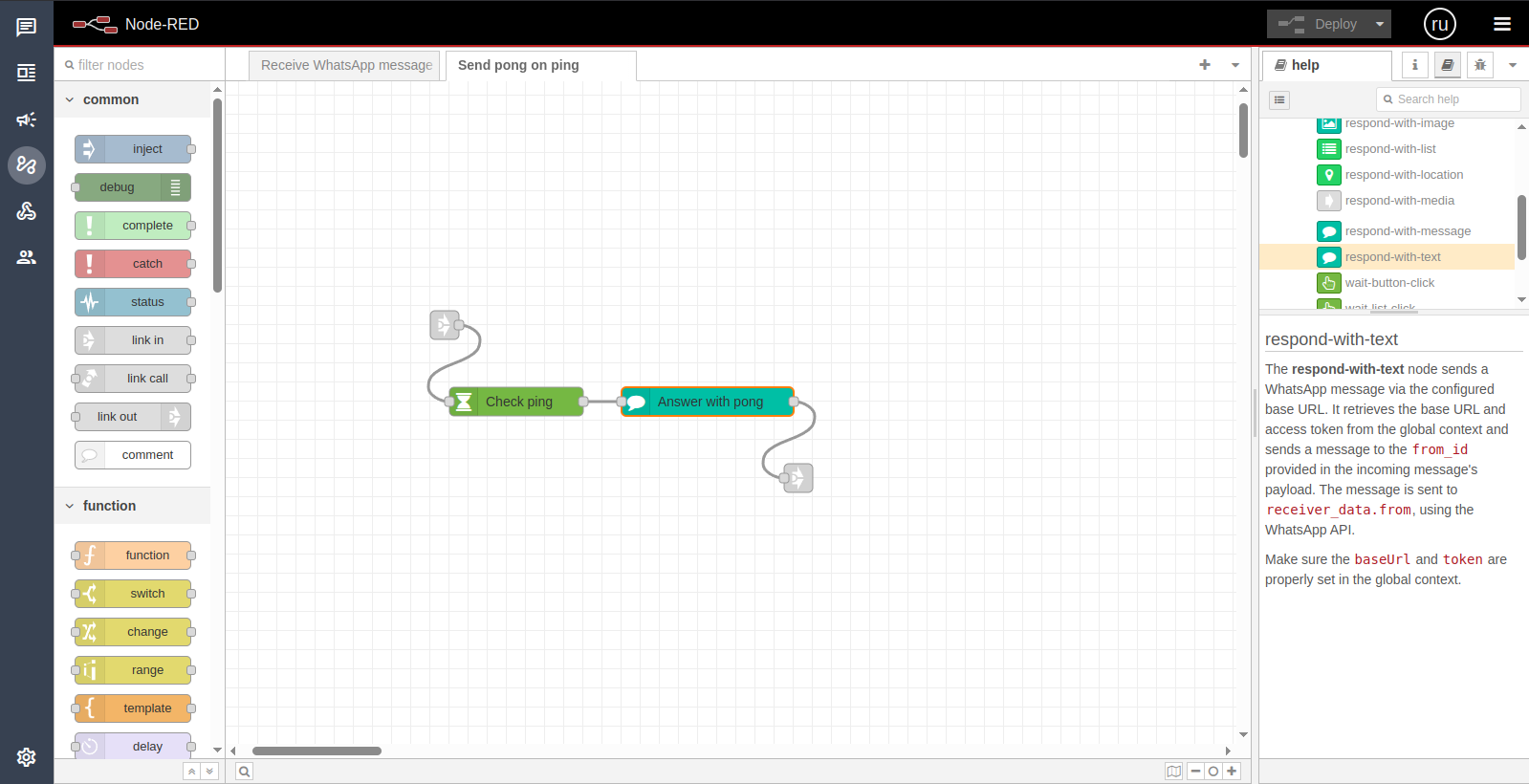
Send ping from WhatsApp; receive pong back – congrats! 🎉
5 — Available nodes (cheat‑sheet)
Full reference lives inside Node‑RED → Wacraft Nodes panel.
6 — Support & customisation
- Contact: wacraft@astervia.tech
- Repo (only for supporters): https://github.com/Astervia/wacraft-node-red-defaults
- We can tailor nodes, build high‑scale deployments, or review your flows.
Enjoy building no‑code automations! ✨